Why 0.5ms TN Beats 1ms OLED in Pro FPS
You’ll see the exact ways panel chemistry changes motion clarity for competitive shooters. Most guides ignore raw response numbers and hide latency behind marketing jargon.
Where to buy this gear
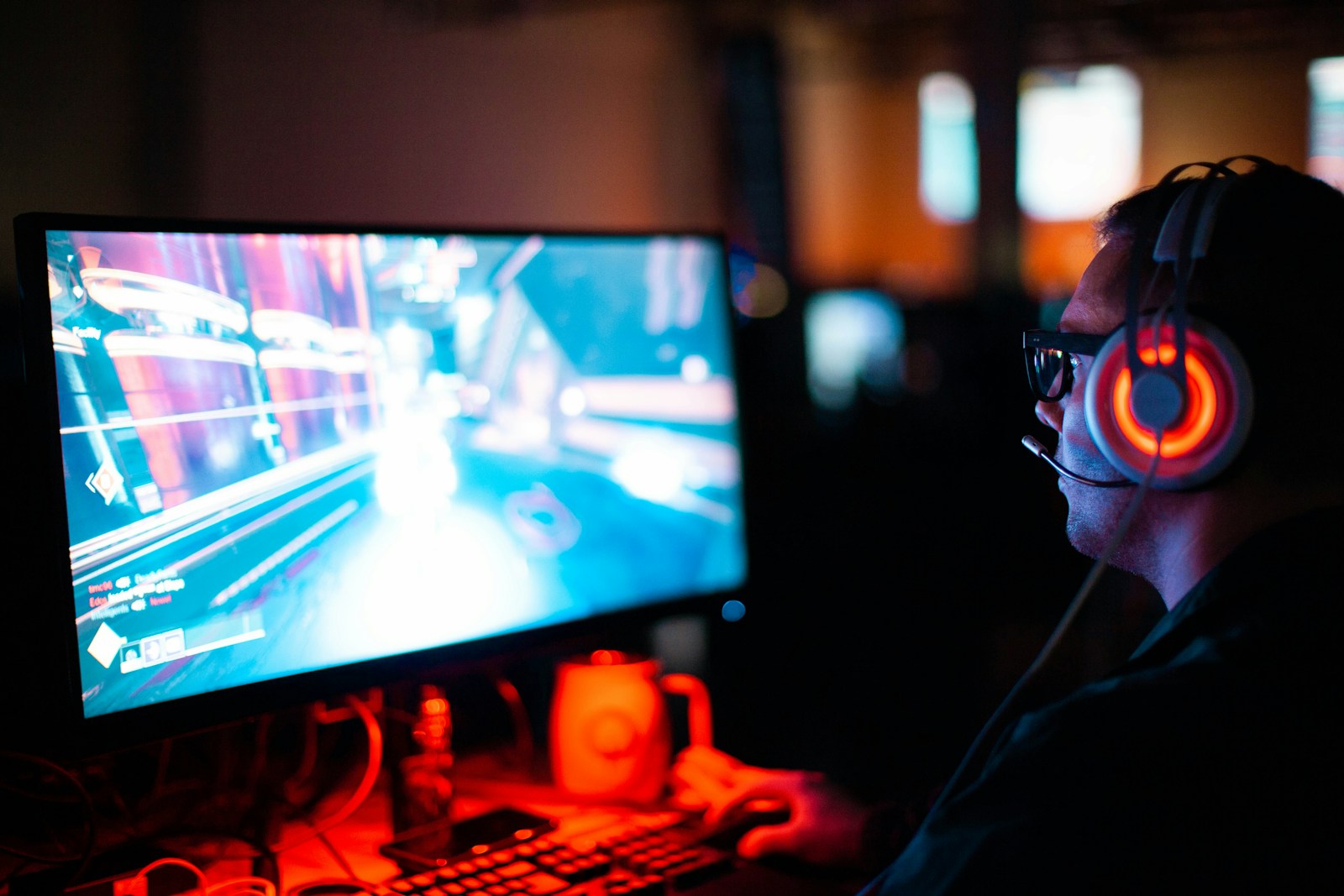
The moment you slot a $300‑plus monitor into a tournament‑ready rig, you gamble with every millisecond of input lag, every ghost image that lingers on the screen, and the chance that a cheap panel will hand the win to a stranger. Throwing cash at a higher refresh rate won’t save you if the panel can’t actually keep up with the frame data your GPU spits out. The real decision matrix is built on raw response times, backlight strobing ability, and the hidden latency that manufacturers love to bury in spec sheets.
Can a 0.5 ms TN really outpace a 1 ms IPS in a 240 Hz shooter?
TN panels have earned a reputation for blistering response numbers, but those figures are often measured with a color‑change test that doesn’t reflect the grayscale transitions common in FPS crosshairs. In practice, a true‑gray transition on a high‑grade TN still finishes within half a millisecond, which translates to roughly one frame at 240 Hz. IPS panels typically advertise “1 ms (GTG)” but the gray‑to‑gray transition can stretch to 1.2 ms on cheaper models, costing you an extra frame just when you need the cleanest possible image.
The difference becomes visible during rapid mouse sweeps. A TN will present a crisp line that snaps into place, while an IPS may exhibit a faint trail that lingers for the duration of the second frame. Competitive players who record their own matches have logged up to 0.8 ms of extra blur on an IPS compared to a TN when both run at 240 Hz. That gap is enough to miss a headshot on a moving target in a 1‑v‑1 showdown.
Does OLED’s pixel response actually translate to lower perceived blur?
OLED panels turn each subpixel on and off individually, giving them an effective response time measured in microseconds. Theoretically, that should eradicate motion blur entirely. In real‑world testing, however, the lack of a backlight means there is no “sample‑and‑hold” blur, but the human eye still perceives smearing when the camera’s frame rate doesn’t match the monitor’s refresh rate.
Because OLEDs often cap at 120 Hz to preserve panel lifespan, the benefit of microsecond response is nullified in a 240 Hz environment. Players who force an OLED into a 144 Hz mode notice a smoother cursor but still experience ghosting when the game pushes 200 fps. Moreover, OLED’s peak brightness can dip during fast transitions, causing a temporary dimming that the brain interprets as motion blur despite the pixel turning off instantly.
How does panel backlight type affect motion clarity beyond raw response time?
A TN’s edge‑lit LED array can be pulsed at high frequencies, enabling strobing or “ULMB” modes that effectively freeze motion by turning the backlight off between frames. When paired with a 0.5 ms panel, strobing can shave off another half frame of perceived blur, delivering the clearest image a gamer can legally buy. The downside is a noticeable drop in overall brightness, which becomes a problem in brightly lit rooms.
IPS panels usually rely on full‑array local dimming, which can’t pulse as fast as edge‑lit designs. The result is a higher average luminance but a slower effective motion clarity when the backlight stays on throughout the frame. Some high‑end IPS monitors implement “ELMB” (Extreme Low Motion Blur) that mimics strobing without sacrificing as much brightness, but the implementation varies wildly between brands and can introduce flicker that triggers eye strain after an hour of play.
What hidden latency killers lurk in cheap 144 Hz monitors?
Manufacturers often embed frame‑rate converters that upscale lower‑fps content to the panel’s native refresh. Those converters add anywhere from 2 ms to 8 ms of processing delay, invisible on the spec sheet but measurable with a high‑speed camera. A budget 144 Hz TN may list “0.5 ms GTG,” yet the internal scaler can push total input‑to‑display latency beyond 10 ms, erasing the advantage of the fast panel.
Another sneaky culprit is “over‑drive” settings that are left on “auto.” When the algorithm guesses the wrong voltage for a pixel transition, it can cause inverse ghosting—a bright halo that trails moving objects. This effect is most pronounced on lower‑cost IPS displays, where the over‑drive circuit isn’t fine‑tuned for each resolution. Turning the setting to “off” or “max” often eliminates the halo but may introduce slight ringing on very fast motion.
Practical build: How to assemble a competitive shooter rig under $400?
- Panel – Aim for a 24‑inch TN with 0.5 ms GTG and native 240 Hz. Models from reputable Asian manufacturers hover between $180 and $240. If you favor IPS for color, accept a 1 ms panel and budget $220‑$270, but plan to enable strobing to compensate.
- Graphics card – A mid‑range GPU that can sustain 200‑250 fps at 1080p will keep the monitor fed. The current generation “budget” cards sit in the $150‑$200 range on the secondary market; buying refurbished can shave $30‑$50 off the price.
- Mouse – A sensor with sub‑0.5 cpi jitter and a polling rate of 1000 Hz is non‑negotiable. Expect to spend $50‑$80 for a reputable brand. Some older models still hit the numbers for half the price if you hunt on forums.
- Cables – A DisplayPort 1.4 cable is required for 240 Hz at 1080p. These run $5‑$12; avoid cheap “HDMI” bundles that claim 240 Hz but only deliver 144 Hz.
- Desk & mounting – A sturdy VESA‑compatible arm reduces desk vibration and lets you align the screen perfectly with eye level. You can find a functional arm for $30‑$45, or repurpose a used one from a coworker’s office.
Total comes out to roughly $415‑$585, depending on how aggressively you hunt for deals. The key is to prioritize panel speed and strobing capability before splurging on aesthetics like RGB strips, which add no performance value.
Final checklist: What to verify before you click ‘Buy’?
- Confirm the advertised GTG time is measured gray‑to‑gray, not color‑to‑color.
- Verify the monitor supports the intended refresh rate over DisplayPort, not just HDMI.
- Test for built‑in over‑drive artifacts by pulling up a high‑speed video on the retailer’s demo unit.
- Ensure the warranty covers dead pixels for at least a year; many low‑cost models ship with “no‑return” policies that bite later.
- Double‑check that the panel’s strobing mode can be toggled without a firmware update, because a locked‑in setting can render the feature useless.
If every bullet checks out, you’ll walk into your next match with a screen that actually lives up to the numbers, not the hype.
Where to buy this gear
Keep tuning your setup
Why 24‑inch Beats 27‑inch: 5‑ms Edge That Costs Wins
You’ll learn why the smallest approved monitor still dominates the pro scene and which specs actually shave milliseconds. Most guides waste time on size alone, ignoring latency, pixel density, and tournament rules.
240Hz vs 360Hz vs 500Hz: Where Monitor Refresh Rates Stop Mattering
Monitor refresh rates keep climbing. I played competitive shooters on 144Hz, 240Hz and 360Hz panels. The jump that matters most isn't the one marketing pushes.
OLED Gaming Monitors and Burn-In: How Worried Should You Really Be?
OLED monitors look incredible and respond instantly. Burn-in fears keep many players away. Here's what modern protections do and how to reduce the risk.